Share or bookmark a search
On this page
Every results page has its own address. It records the tab, your words and the choices you made in the filter row, so the address is the search. Copy it, bookmark it or send it, and the same search runs again when it is opened.
#Keep or send a search
- Run the search and set the filters you want.
- Wait until the results have reloaded.
- Copy the address from your browser's address bar, or add a bookmark.
- Paste the address wherever you want to send it.
Copy the address after you have finished choosing. The filters update the address each time they change, so an address copied before you picked a date range does not include it.
#What the address records
| What you did | In the address |
|---|---|
| The tab | The path, such as /news/search or /all/search |
| Your words | q= followed by your words, operators included |
| A date range from the menu | sd= and the range |
| Published or Discovered | sdt= |
| A match option | ef= |
| A length | mw=, and wmin= and wmax= for a custom range |
| A sentiment choice | snt= and the numbers you ticked |
| Apply to web unticked | gw=0 |
| See all results instead | intent=off |
| A page after the first | from= and size= |
| A website or a topic | fqdi= or ssi= |
The part after #, such as #gsc.tab=0&gsc.q=…&gsc.page=1, is added by the Google-hosted Web column and records its page.
You do not need to type any of this. The menus write it for you. The full list is in Address parts.
#Things to know before you share
- Auto is not recorded. When the date menu is on Auto, the address has no date, and the person who opens it gets Auto for their own day.
- Results change. The address reruns the search: someone opening it next week sees next week's articles within the same choices.
- The words are in the address. Anyone who sees the link sees what you searched for.
#Share one article
To send a single article rather than your search, use the card's options menu.
- Select the three dots at the top right of a result card.
- Choose Share this URL.
- Choose where to share it, or copy the address.
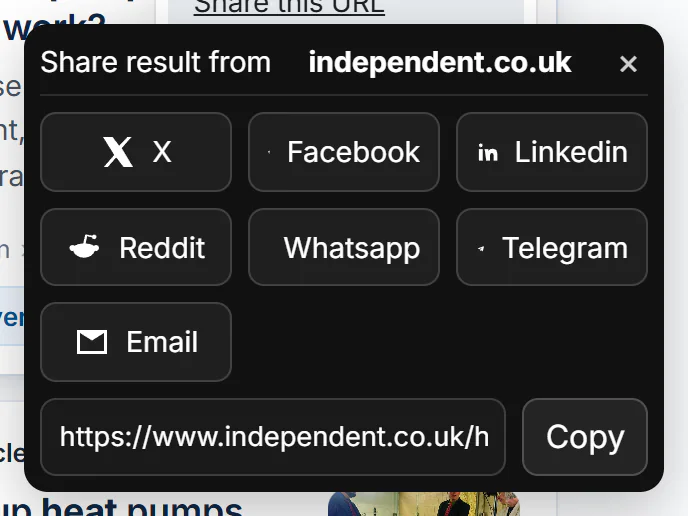
Share this URL: buttons for X, Facebook, LinkedIn, Reddit, WhatsApp, Telegram and Email, and the article's address with Copy.
- 1Whose article this is
- 2Where to share it
- 3Or copy the address
The window shares the article's own address on the publisher's site, not a 4Search page. Press Esc or select × to close it.
#Common questions
How do I keep a search I use often?
Bookmark its results page in your browser. The bookmark holds the address, so it reruns the search with the same choices.
Why does the person I sent the link to see different results?
The search ran again when they opened it, and new articles may have arrived. On Auto, the window is also chosen for the day they open it. Set a fixed date range before you copy the address to keep it steadier.